
Come risolvere il buffering IPTV: Diagnostica di rete
QUICK DIRECT ANSWER
To stop IPTV buffering, connect your streaming device directly to your router using a physical Ethernet cable, configure your DNS servers to Cloudflare (1.1.1.1) or Google (8.8.8.8), clear your IPTV app's cache, and use a premium VPN to bypass internet service provider throttling.
Few things disrupt a live broadcast like buffering. While many blame the streaming servers, the bottleneck is almost always within the local network or the internet routing path. This guide provides technical network diagnostic steps to solve buffering for good.
Table of Contents
- 1.What Causes IPTV Buffering?
- 2.Internet Speed Requirements
- 3.Wi-Fi vs Ethernet for IPTV
- 4.Does VPN Help IPTV Buffering?
- 5.Router Placement Best Practices
- 6.IPTV Device Network & Cache Troubleshooting
- 7.Smart TV Network Configuration & Diagnostics
- 8.Immediate Network Reset & Diagnostics
- 9.Comparison Matrix
- 10.Pros and Cons
- 11.Common Challenges
- 12.Step-by-Step Troubleshooting
1.What Causes IPTV Buffering?
Why does your live IPTV stream keep freezing?
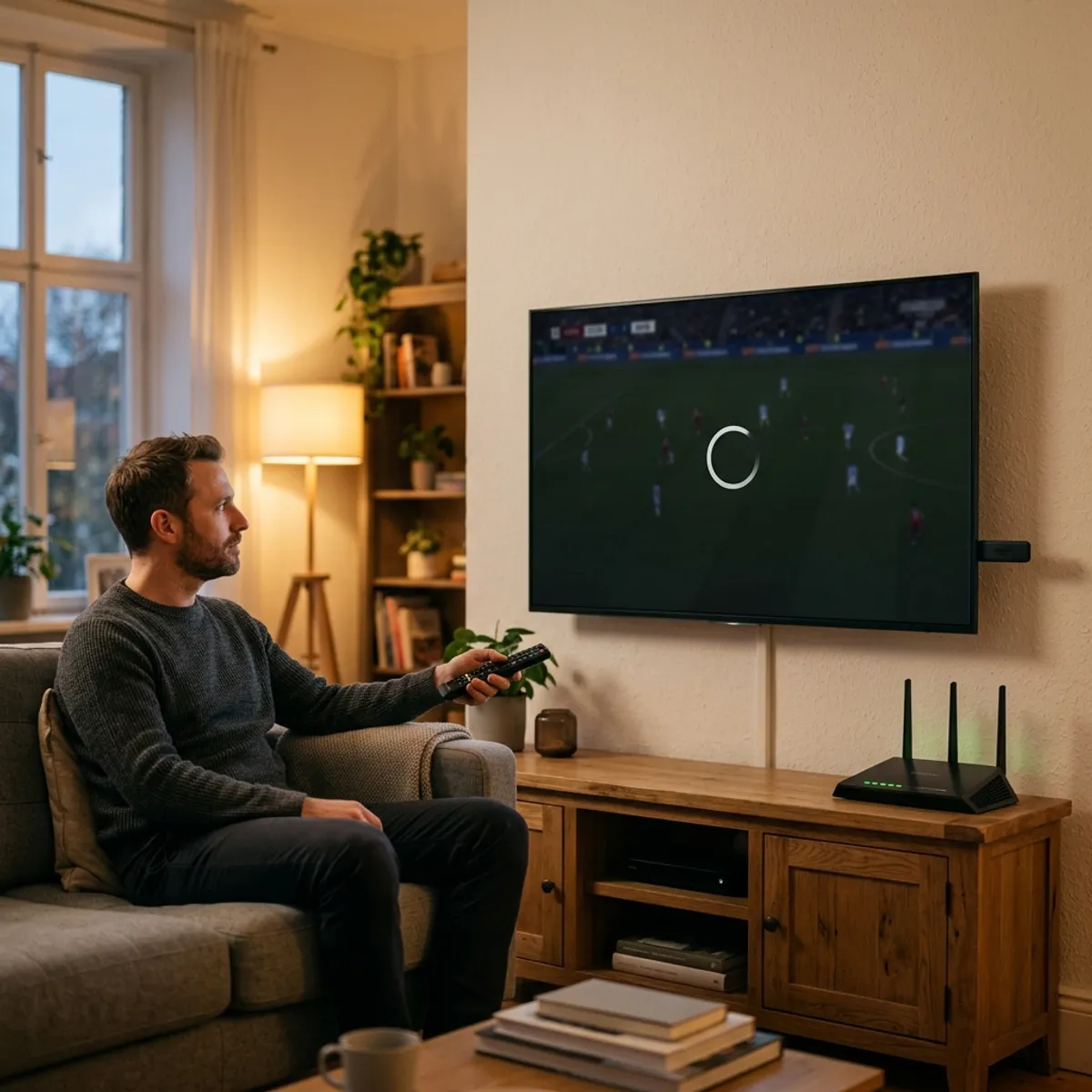
Live streaming channels require a continuous, uninterrupted connection. Unlike pre-recorded streaming platforms like YouTube or Netflix, which pre-load minutes of video ahead of time, live television streams in real-time. Any micro-interruption in your internet path immediately stops the playback, displaying the loading wheel.
For example, think of your connection like water flowing through a household pipe. If other family members start downloading large updates or streaming 4K video, the water pressure drops. The lower flow starves your IPTV player of data, leading to instant stuttering. If you notice constant freezing, trying our IPTV Free Trial on our anti-freeze server routes is the fastest way to check if your network configuration is the problem.

Action Steps:
- Run an online speed test on your device's browser to measure your active download speed.
- Check your network's ping/latency; a ping higher than 100ms to your provider's server node will cause lag.
- Disconnect other smart devices from your home network to free up bandwidth.
2.Internet Speed Requirements
How much speed do you need for smooth IPTV streaming?
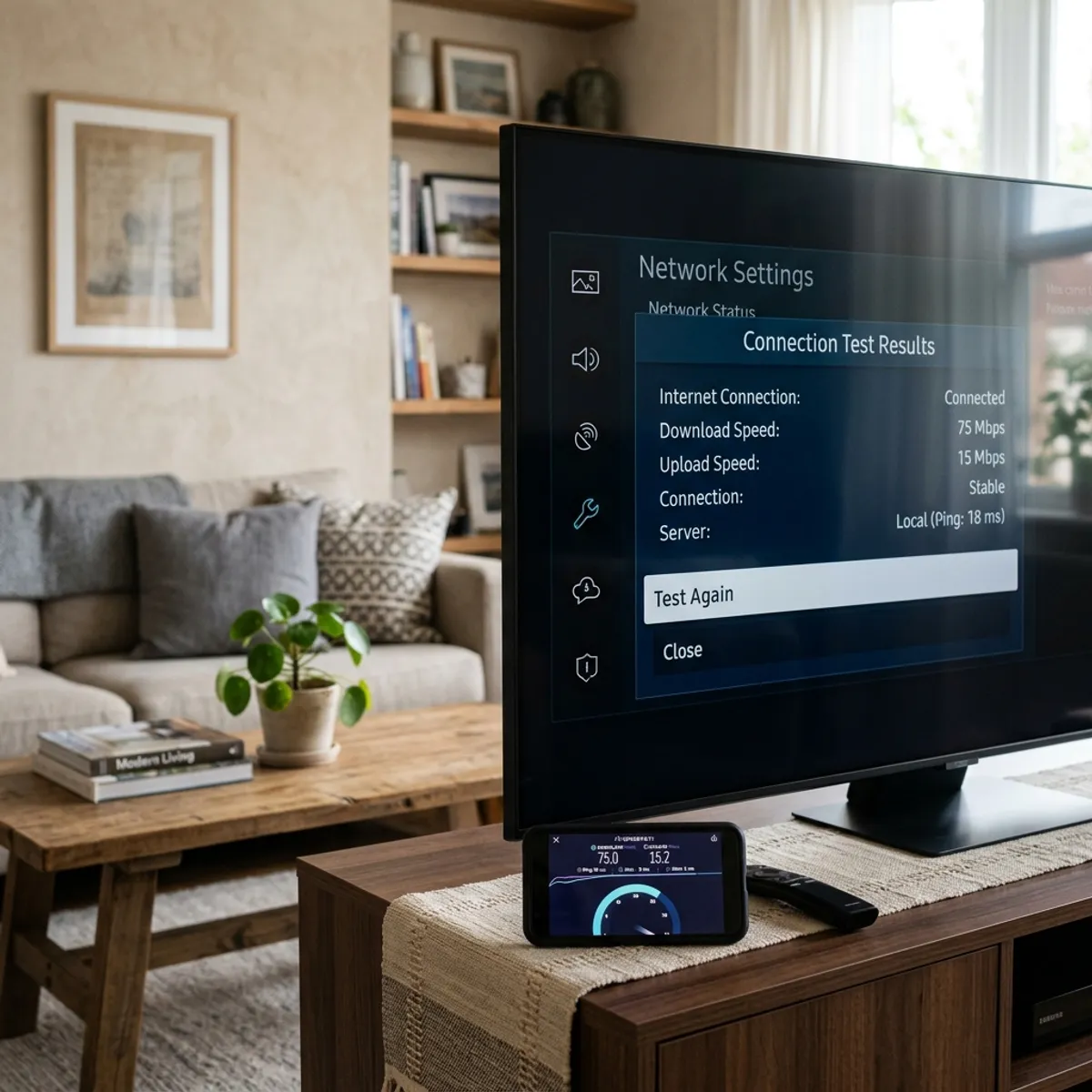
While a single stream uses a set amount of bandwidth, you must maintain extra overhead. If other family members are online, your total home bandwidth is shared. If your total bandwidth is close to the limit, buffering occurs.
For example, if you have a 30 Mbps plan and stream Full HD (25 Mbps), a single phone checking emails can trigger buffering.
Action Steps:
- Upgrade to a package offering at least 100 Mbps if multiple users are connected in the house.
- Adjust the video player settings in your application to select a lower stream profile if your network is struggling.
3.Wi-Fi vs Ethernet for IPTV
Why should you avoid Wi-Fi for live television streaming?
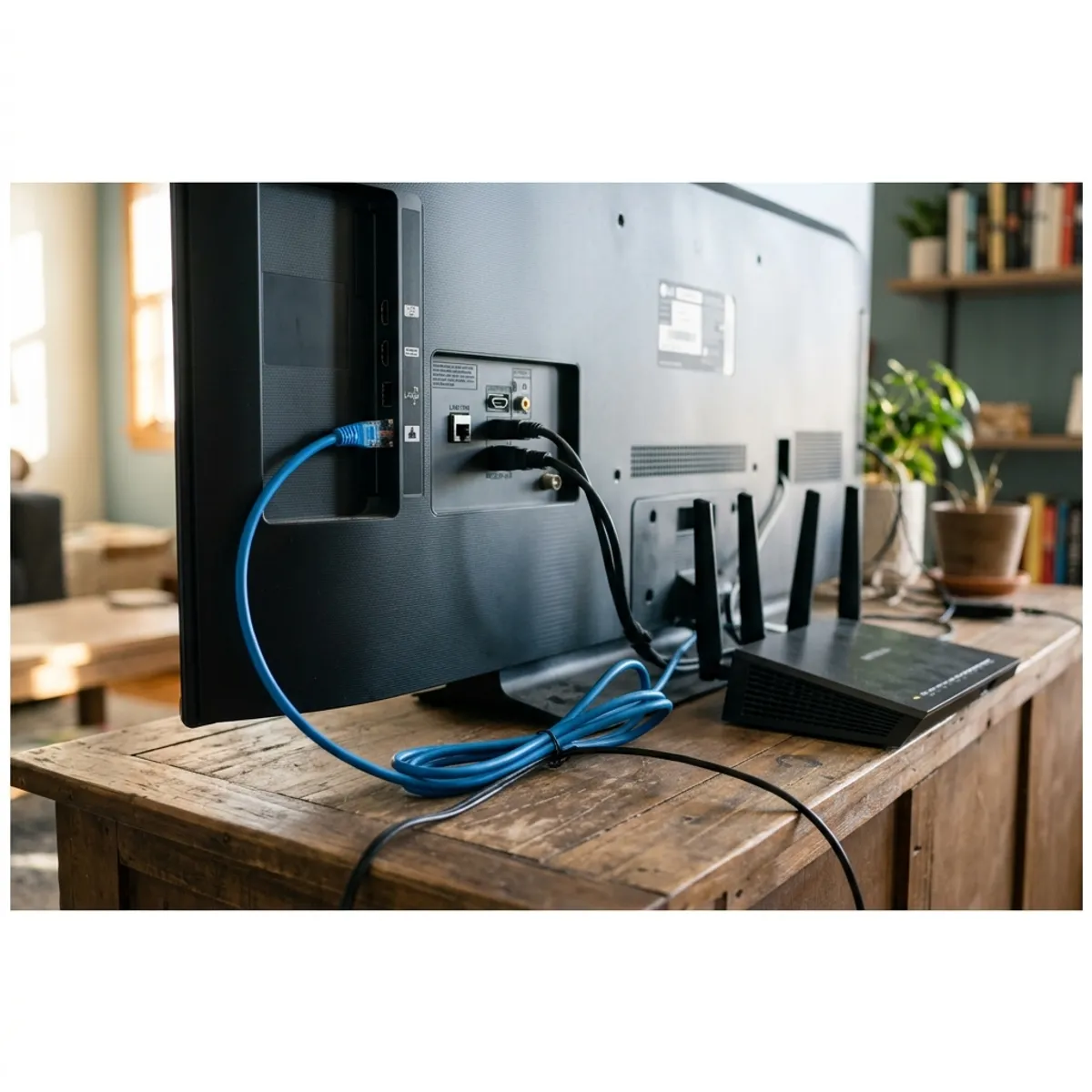
Wi-Fi is prone to signal degradation, physical obstacles like concrete walls, and wireless congestion. Ethernet provides a direct, shielded line from the router. This eliminates packet loss and signal fluctuation.
For example, wireless phone chargers are slower and lose energy compared to a direct USB plug. Wireless internet operates on the same principle. A direct Ethernet cable guarantees a continuous flow of data packets. For more setup details, see our Installation Guide.
Action Steps:
- Plug an Ethernet cable into your streaming device.
- Use a micro-USB Ethernet adapter for streaming sticks.
- Disable Wi-Fi once the cable is connected.
4.Does VPN Help IPTV Buffering?
Can a VPN stop your internet provider from throttling speeds?
ISPs monitor network traffic and throttle connection speeds to streaming servers to save bandwidth. A VPN encrypts your connection, hiding your activity. The ISP only sees encrypted data and does not apply throttle filters.
For example, a VPN is like sending mail in a locked box; the post office cannot inspect the contents.
Action Steps:
- Install a premium VPN app.
- Connect to a server close to your location.
- Choose a fast protocol like WireGuard.
5.Router Placement Best Practices
Where should your home router be located to improve signal strength?
Physical barriers like walls and metal objects block signals. Placing the router in a central, open area improves signal strength.
For example, a speaker in a closet sounds muffled; a speaker in the center of the room sounds clear.
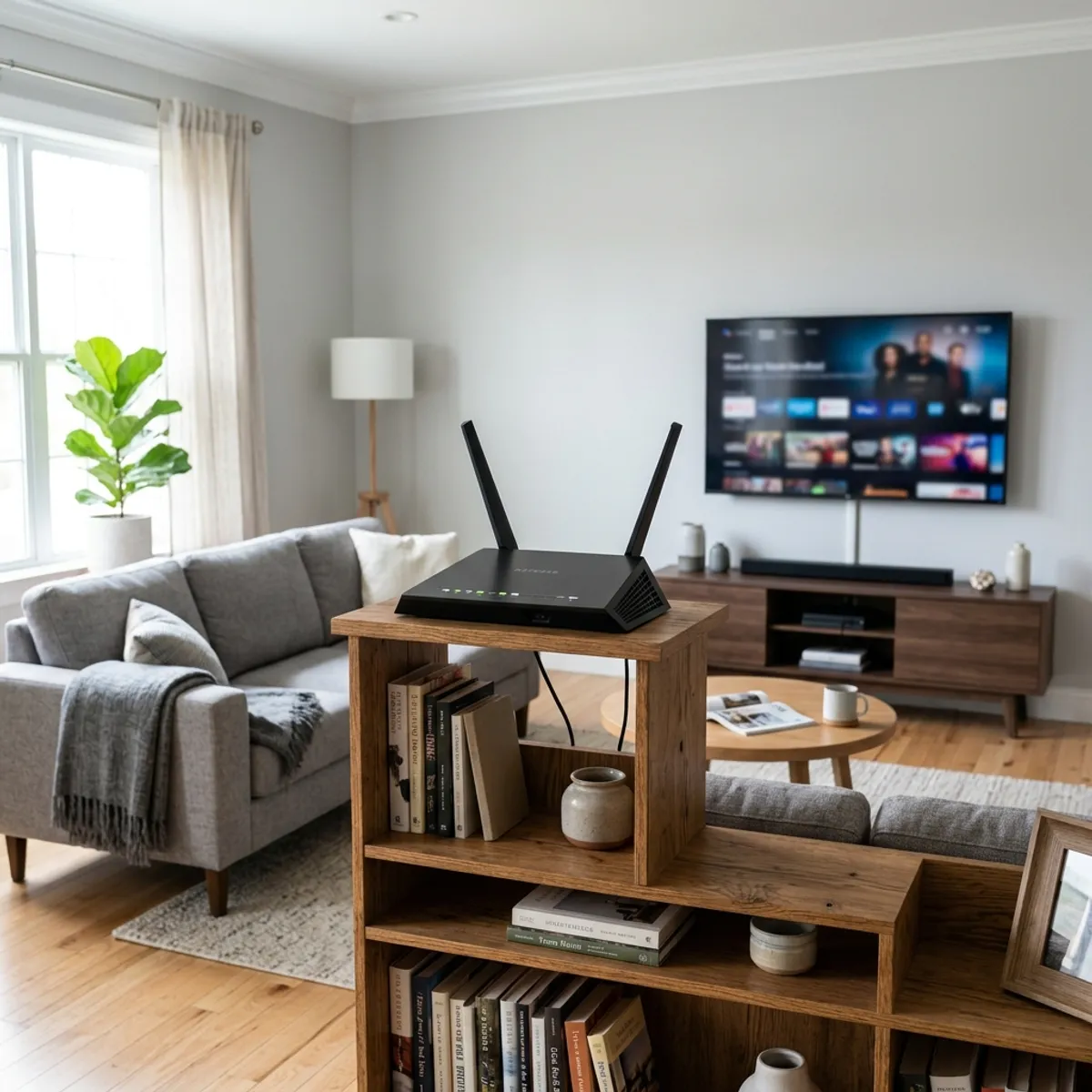
Action Steps:
- Move the router out of closets or cabinets.
- Keep it away from metal objects and appliances.
- Place it higher up on a shelf.
6.IPTV Device Network & Cache Troubleshooting
How to clean up memory and configure your streaming device?
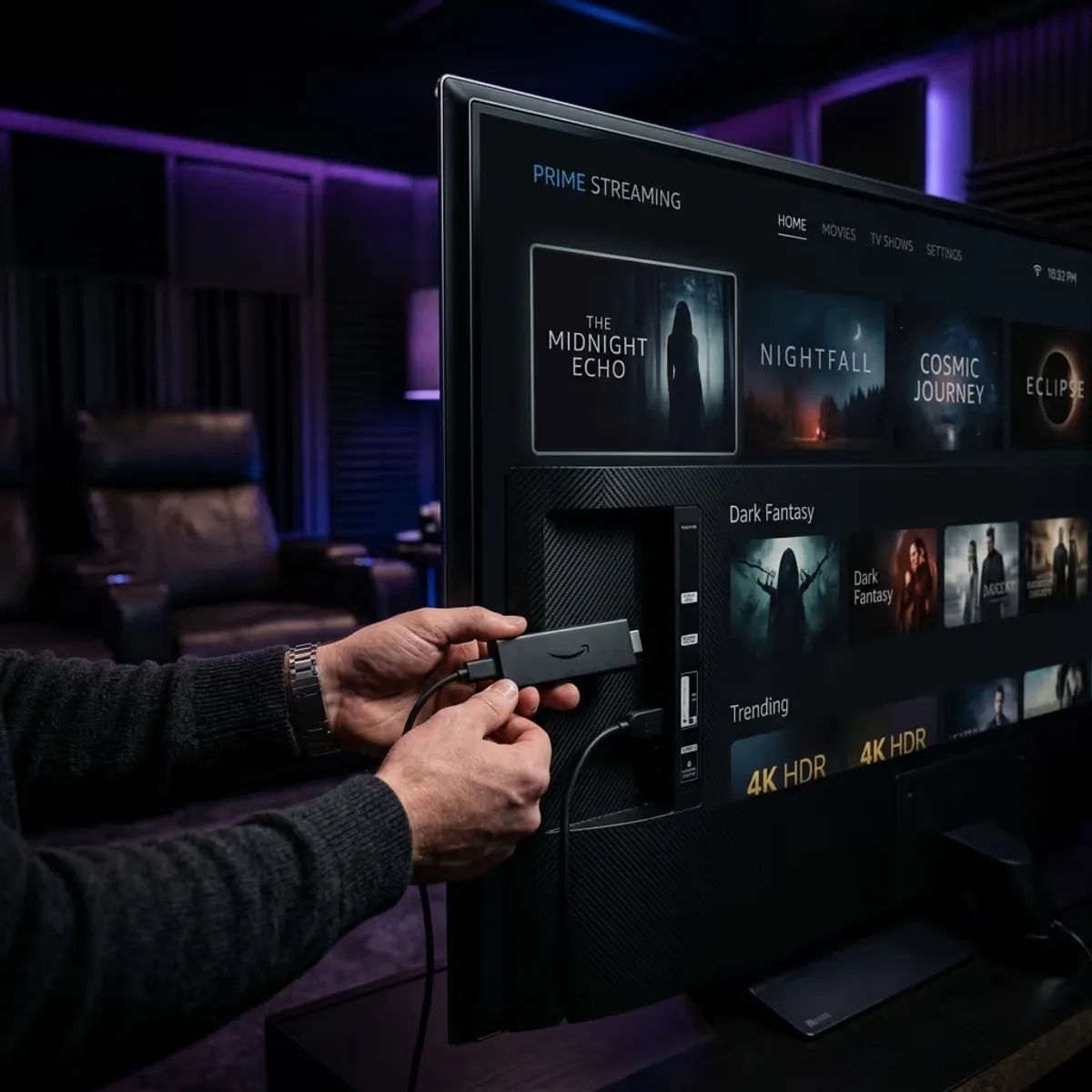
Streaming devices like Firesticks have limited hardware. Low storage and power cause lagging. The Fire TV Stick has limited memory, making it prone to performance issues when full.
For example, just like a smartphone, a Firestick slows down when its internal memory is packed. For more configuration details, check our Firestick Setup Guide.
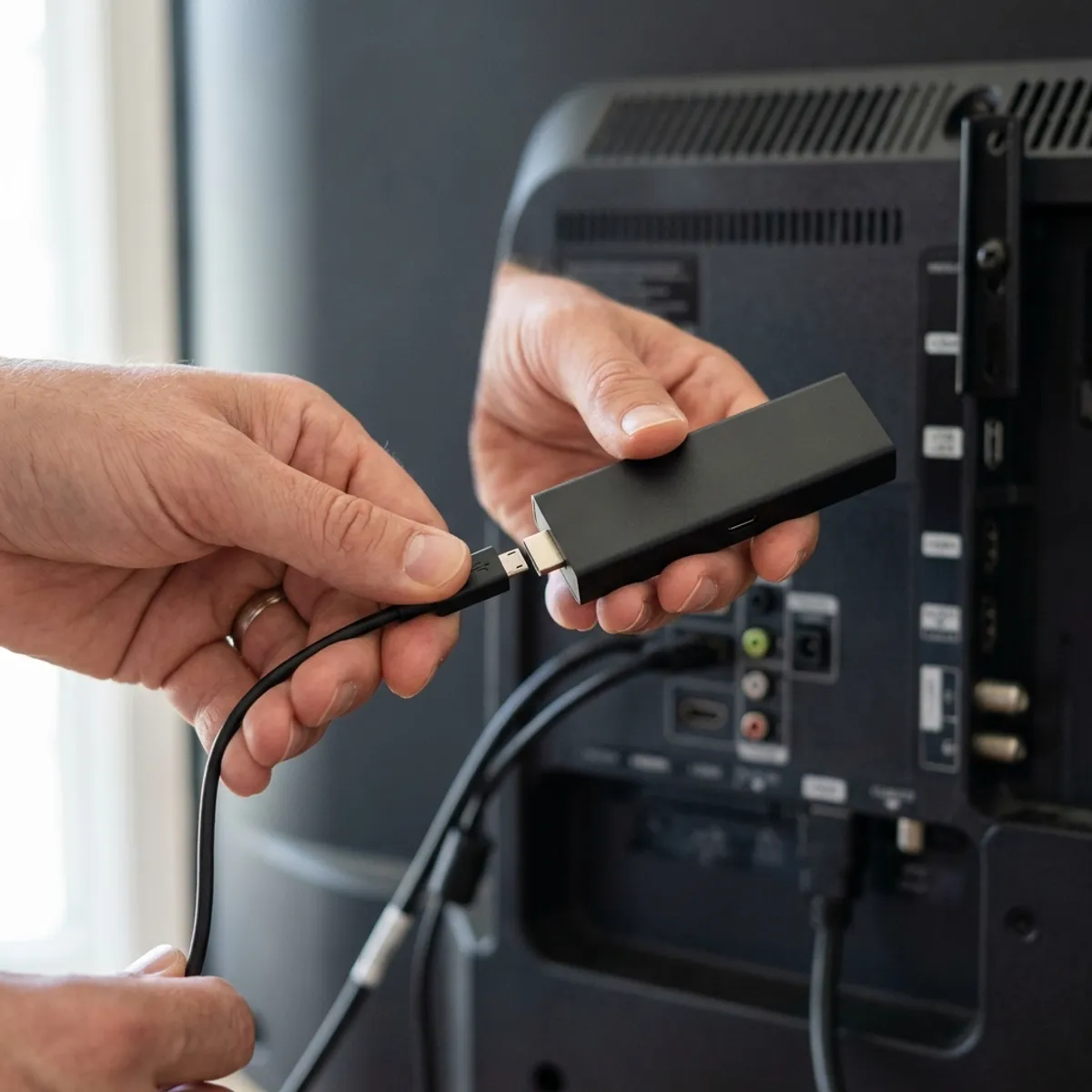
Action Steps:
- Navigate to Settings > Applications > Manage Installed Applications, select your player, and click Clear Cache.
- Maintain at least 1.5GB of free space.
- Connect the power cable to a wall outlet.
7.Smart TV Network Configuration & Diagnostics
How to fix buffering on Samsung, LG, or Sony Smart TVs?
Smart TV processors are often slow and lack the RAM to handle heavy streaming applications. Closing background tasks restores necessary memory.
For example, TV apps lag when too many processes run in the background. For player tips, see our Smart TV Guide.
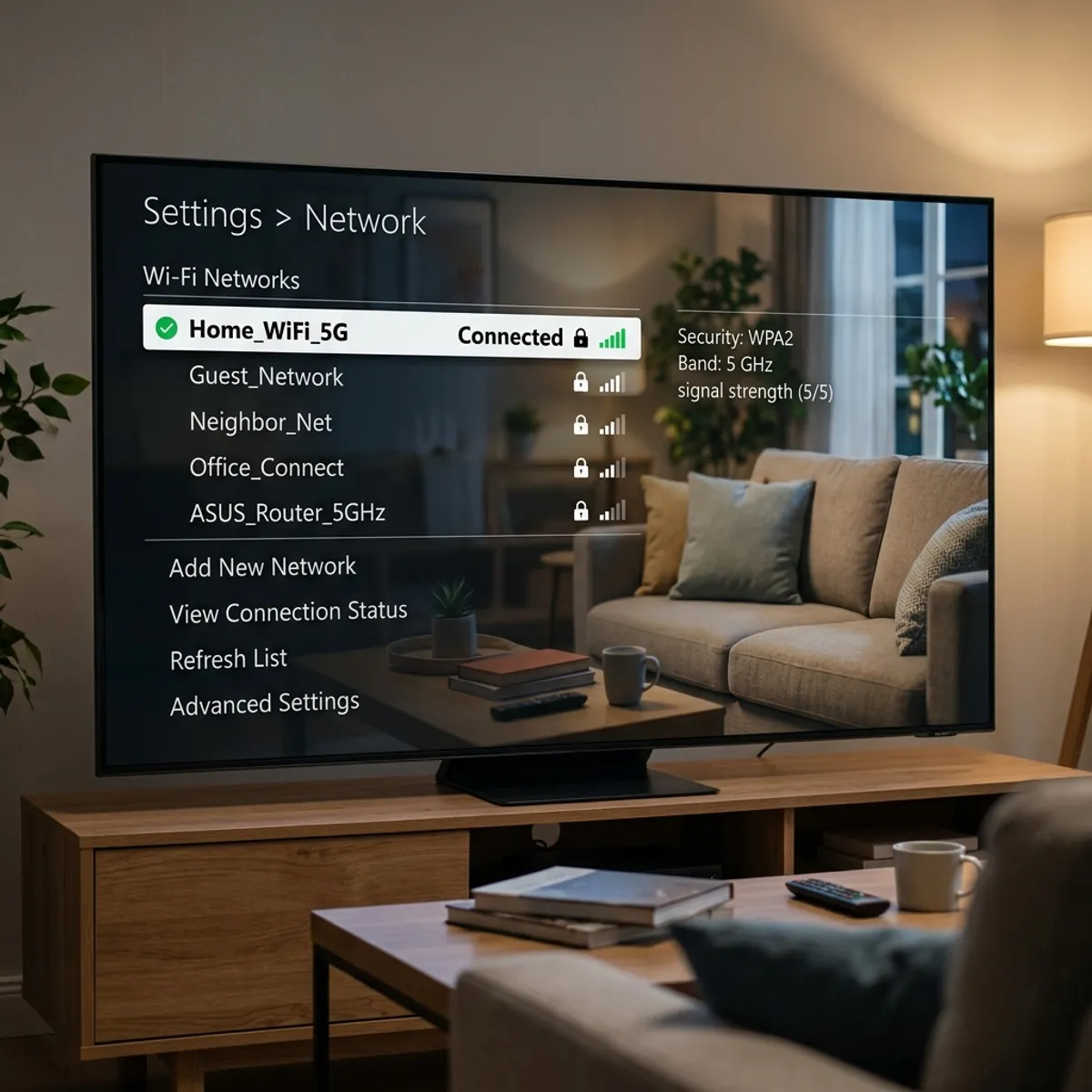
Action Steps:
- Unplug the TV power cable weekly for 60 seconds to reset system memory.
- Use optimized players like IPTV Smarters.
- Connect an Ethernet cable directly.
8.Immediate Network Reset & Diagnostics
What basic steps should you take first when buffering starts?
Power cycling clears accumulated background memory caches and resets local routing tables immediately. This solves most common streaming issues.
For example, just like rebooting a lagging computer resolves running issues, restarting networking gear clears data blockages.

Action Steps:
- Unplug router and modem power cables.
- Wait 30 seconds to allow full discharge.
- Plug back in and restart your streaming device.
9.Comparison Matrix
| IPTV Issue | Possible Cause | How To Test | Recommended Fix |
|---|---|---|---|
| Buffering every few minutes | Network congestion or insufficient local bandwidth | Run a speed test on your device; check active network downloads | Pause background downloads, prioritize the streaming device via router QoS, or upgrade your internet plan |
| Buffering only at night | ISP traffic throttling or neighborhood network congestion | Compare streaming zapping speed with and without a premium VPN active | Use a secure VPN (WireGuard protocol) to bypass ISP speed caps |
| Playlist timeout | Extremely large playlist saturating device system memory (RAM) | Check if zapping app crashes or freezes during playlist loading | Clear app cache, uninstall unused apps, or filter the playlist to fewer countries |
| Channels not loading | ISP DNS blocking or server route filtering | Try accessing your playlist zapping link via mobile data (4G/5G) | Configure custom public DNS servers (Cloudflare 1.1.1.1 or Google 8.8.8.8) on your device |
| VPN slowdown | High latency or overloaded VPN server choice | Compare connection speed across different VPN server countries | Connect to the nearest server location using WireGuard or IKEv2 protocols |
| Weak Wi-Fi | Physical obstacles, wall interference, or distance from router | Compare speed test results next to the router vs at the television | Connect via a physical RJ45 Ethernet cable or switch to a 5GHz Wi-Fi band |
| DNS problems | Outdated or restricted DNS resolving by your ISP | Try zapping channels after setting custom DNS configuration | Set static IP with Cloudflare primary DNS (1.1.1.1) and secondary (1.0.0.1) |
| Router congestion | Outdated router routing table or active device collision | Check ping latency to your gateway router (should be under 2ms) | Power cycle the router (unplug for 30 seconds) to flush routing tables |
| ISP throttling | ISP inspecting packet headers and applying speed limits on stream traffic | Compare zapping speed with and without a premium VPN active | Activate a secure premium VPN to encrypt your video traffic |
| Firestick overload | Low storage space, too many background apps, or low power | Go to Settings > My Fire TV > About > Storage and verify free space | Keep at least 1.5GB of free space, clear app cache, and use a wall outlet |
10.Pros and Cons
Pros
- •Wired stability: Ethernet reduces packet loss to zero.
- •Custom DNS: Bypasses local network filtering.
- •VPN security: Prevents targeted speed throttling.
Cons
- •VPN overhead: Adds slight processing load to low-end devices.
- •Wiring: Running ethernet cables throughout a home can be difficult.
- •Config: Manual configurations require basic technical comfort.
11.Common Challenges
1. ISP Congestion
Problem: Broad slowdown of internet speeds during peak hours.
Why it happens: Too many active connections on the neighborhood node saturate the ISP's regional bandwidth capacity.
How to identify it: Run an online speed test at 9 PM and compare it to a test run at 9 AM.
How to fix it: Use a premium VPN to route through less congested server nodes, or upgrade to a fiber connection.2. Peak Evening Traffic
Problem: Intermittent buffering starting between 7 PM and 11 PM.
Why it happens: Household internet usage increases as users return home from work to stream video and play games.
How to identify it: Check if streaming is flawless during the workday but buffers during primetime hours.
How to fix it: Configure Quality of Service (QoS) on your router to prioritize the media player device.3. Packet Loss
Problem: The stream freezes randomly even though download speeds are high.
Why it happens: Network packets are corrupted or dropped during transmission due to faulty wiring or Wi-Fi interference.
How to identify it: Use a ping tool in a terminal and look for packet loss percentages above 0%.
How to fix it: Replace damaged Ethernet cables, or switch from Wi-Fi to a direct wired connection.4. Weak Wi-Fi Signal
Problem: Unstable connection and frequent streaming timeouts on wireless devices.
Why it happens: Physical walls, concrete, or metal objects degrade the high-frequency wireless waves.
How to identify it: Check the Wi-Fi signal indicator on your TV settings (under 2 bars indicates a weak signal).
How to fix it: Move the router closer, remove obstacles, or connect a physical RJ45 Ethernet cable.5. Router Overload
Problem: The router becomes hot to the touch and drops all wireless connections.
Why it happens: The router's processor and RAM are saturated by handling too many active smart home devices.
How to identify it: Check if other devices lose internet access at the same time the TV buffers.
How to fix it: Power cycle the router weekly, or upgrade to a modern Wi-Fi 6 router.6. DNS Delays
Problem: Long delays (zapping latency) when switching between live channels.
Why it happens: Your ISP's default DNS server takes too long to resolve the stream server's domain name.
How to identify it: A channel takes more than 6 seconds to load but plays fine once started.
How to fix it: Change your DNS settings to Cloudflare public DNS (1.1.1.1).7. Device Overheating
Problem: The streaming stick freezes or reboots during long viewing sessions.
Why it happens: Lack of ventilation behind the TV causes the streaming hardware to throttle performance to cool down.
How to identify it: The device feels extremely hot, or the video stuttering worsens after 1 hour of playback.
How to fix it: Use an HDMI extender cable to position the stick away from the hot back panel of the TV.8. Background Downloads
Problem: Immediate buffer wheel when another household member is online.
Why it happens: Game updates, cloud backups, or 4K streams consume all available download bandwidth.
How to identify it: The buffering matches the exact moment another computer or game console starts downloading.
How to fix it: Enable bandwidth limits on background download apps, or set up a dedicated guest network.9. Outdated Firmware
Problem: Incompatibility issues and network dropouts on the streaming player.
Why it happens: Old system software contains unpatched network driver bugs and security vulnerabilities.
How to identify it: Check the settings menu of your TV or streaming device for pending system updates.
How to fix it: Install the latest system firmware and app updates.10. Playlist Loading Failures
Problem: The player app hangs indefinitely or displays an "M3U Parse Error".
Why it happens: The device's RAM is overloaded by trying to load a massive playlist containing over 50,000 items.
How to identify it: The app crashes only when trying to load or refresh the channel database.
How to fix it: Use your provider's dashboard to hide unused country categories, keeping the active list small.
12.Step-by-Step Troubleshooting
- 1Run Speedtest: Check that your connection is at least 30 Mbps.
- 2Change DNS Settings: Navigate to device settings and insert custom DNS parameters.
- 3Enable VPN Connection: Use a fast protocol like WireGuard to route your traffic securely.
- 4Restart Network Gear: Power cycle your modem and router to clear routing caches.
Frequently Asked Questions
Direct Answer: Evening IPTV buffering is typically caused by ISP bandwidth throttling during peak home entertainment hours or neighborhood network congestion. Explanation: During peak hours (usually 7 PM to 11 PM), internet usage surges. ISPs often manage this load by throttling heavy video streaming protocols to prioritize general web browsing. Practical Example: Your IPTV stream runs smoothly at 2 PM, but at 8:30 PM, it starts freezing every few seconds as neighborhood bandwidth demand peaks.
Direct Answer: A smartphone often handles IPTV streams better due to a stronger Wi-Fi receiver, lower resolution requirements, or more efficient zapping app hardware capability. Explanation: Smart TVs have weaker built-in Wi-Fi antennas and slower processors compared to modern smartphones, making them more vulnerable to minor packet drops. Practical Example: Stuttering on a wall-mounted living room TV while a smartphone right next to the TV plays the same live HD stream smoothly.
Direct Answer: Yes, custom public DNS servers improve the lookup speed of live stream URLs, although they do not directly increase your maximum download bandwidth. Explanation: Public DNS servers like Cloudflare (1.1.1.1) resolve hostnames much faster than default ISP DNS servers, preventing zapping delays and connection timeouts. Practical Example: Changing DNS settings on a Firestick reduces channel loading latency from 5 seconds down to under 2 seconds.
Direct Answer: Yes, 100 Mbps is more than enough bandwidth to stream multiple HD or 4K IPTV channels simultaneously, provided the connection is stable. Explanation: A single Full HD stream requires only 25 Mbps. A 100 Mbps connection leaves a substantial 75 Mbps overhead for other household devices. Practical Example: Streaming a live sports broadcast in 4K on your television while family members browse social media on separate devices without any lag.
Direct Answer: Constant freezing every few minutes is usually a symptom of packet loss, router memory saturation, or a high ping (latency) to the stream server. Explanation: When data packets are dropped over Wi-Fi or router queues overflow, the IPTV player must wait for retransmission, causing a loop of freezes. Practical Example: A router running for three months without a reboot accumulates memory cache errors, causing the video stream to drop every 3 minutes.
Direct Answer: You can test packet loss by running a ping command in your device's terminal or using a specialized network tool like ping-test.ru. Explanation: A high packet loss percentage (greater than 1%) means critical stream blocks are being lost in transit, causing the player to freeze. Practical Example: Running a terminal ping test to your IPTV server address reveals a 3% packet loss rate, confirming a physical line or routing problem.
Direct Answer: You should always use the 5GHz Wi-Fi band for IPTV streaming because it offers higher speeds and is less prone to local appliance interference. Explanation: The 2.4GHz band has longer range but is congested by Bluetooth devices and microwaves. 5GHz provides the clean, high-bandwidth environment required for live streams. Practical Example: Switching your streaming device from a 2.4GHz Wi-Fi connection to 5GHz increases your download speed from 18 Mbps to 85 Mbps.
Direct Answer: Yes, a physical Ethernet connection is highly recommended for IPTV because it eliminates wireless signal fluctuation and interference entirely. Explanation: Cable connections provide stable, dedicated bandwidth directly to the device, removing the latency spikes inherent in wireless environments. Practical Example: Connecting a Cat6 Ethernet cable from your router to your smart TV resolves intermittent evening streaming freezes instantly.
Direct Answer: Yes, internet service providers frequently throttle live stream data streams to manage network capacity, leading to severe buffering. Explanation: ISPs inspect packet headers and apply speed limits to unrecognized or non-partner video streams during high-traffic hours. Practical Example: Your download speed drops from 80 Mbps to 5 Mbps only when playing an IPTV link, but returns to normal on an official speed test site.
Direct Answer: Test the stream on a different network, such as your mobile phone data, or run the stream with a premium VPN active. Explanation: If the stream plays smoothly on mobile data but buffers on your home Wi-Fi, the issue lies in your local network setup or ISP routing. Practical Example: Switching your phone off home Wi-Fi to a 5G cellular network instantly stops the stream buffer, pointing to a home router or ISP issue.
Conclusion
Applying correct network configurations ensures an uninterrupted streaming experience. Before altering advanced router settings, testing your connection stability is the easiest way to determine if issues are provider-specific.
Recommended Reading


Verifica la compatibilità prima di impegnarti
Dispositivi, sistemi operativi e lettori IPTV diversi si comportano in modo differente. Un account di prova gratuito ti consente di verificare questi parametri chiave prima di scegliere un abbonamento:
- ✓Verifica compatibilità del dispositivo
- ✓Controlla qualità dello streaming
- ✓Testa disponibilità dei canali
- ✓Valuta prestazioni del lettore
- ✓Conferma stabilità della rete