Optimizing Firestick for IPTV: System Requirements & Settings
QUICK DIRECT ANSWER
To stream IPTV reliably on an Amazon Firestick, prepare at least 1GB of free storage space, use a 5GHz network connection, and configure standard media players via Developer Options.
Amazon's Fire TV Stick is an excellent streaming device, but it requires correct configuration to deliver smooth HD streaming. Since it has limited storage and hardware resources, adjusting system settings is critical to prevent buffer events and application crashes.
Table of Contents
1.1. Device Storage Management
The Amazon Firestick has a total of 8GB of internal storage, with only about 5GB available to the user. Low storage capacity is the primary cause of stream buffering and interface sluggishness. Keep at least 1GB to 1.5GB of free space. To check your storage, go to Settings > My Fire TV > About > Storage. Uninstall unused utility apps and clear application cache regularly. Heavy EPG guides can store up to 500MB of static data; clearing this data or switching to a dynamic EPG schedule will immediately free up memory and stabilize your stream.
2.2. Developer Mode Configuration
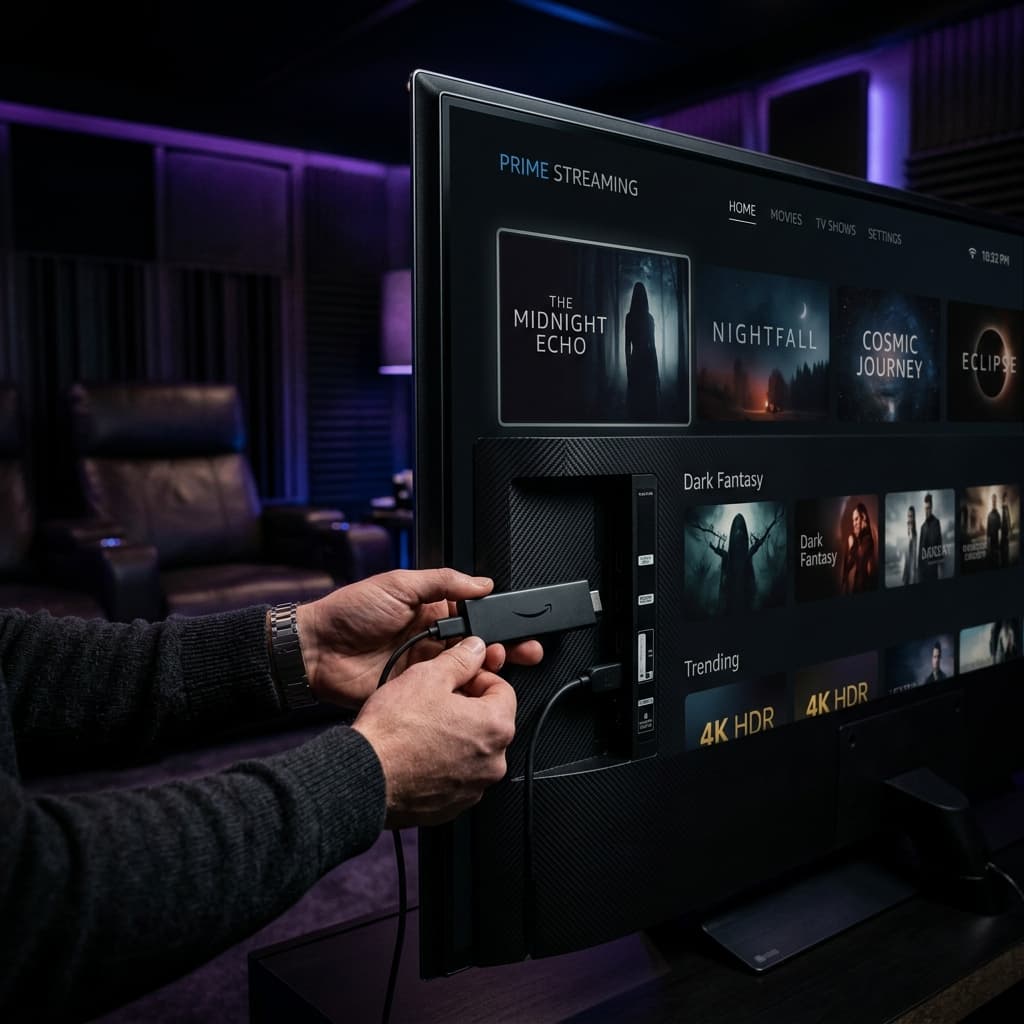
Because IPTV applications are not always available directly on the Amazon App Store, you must enable sideloading. Navigate to Settings > My Fire TV > About. Select your device name and click the center button 7 times. Return to My Fire TV, choose Developer Options, and enable installations from unknown applications. This gives you the authorization to download utility apps like Downloader to fetch the player binaries safely.
3.Comparison Matrix
| Metric | Firestick Lite | Firestick 4K | Fire TV Cube |
|---|---|---|---|
| RAM | 1GB | 2GB | 3GB |
| Decoding | 1080p only | 4K HDR | 4K HDR / AV1 |
| Network | WiFi only | WiFi 6 | WiFi 6E / Ethernet |
4.Pros and Cons
Pros
- •Portability: Pocket-sized device that fits directly into HDMI ports.
- •Cost-effective: High-performance streaming at an affordable price.
- •Android system: Sideloading support allows custom media players.
Cons
- •Limited storage: Heavy EPG guides can deplete the 8GB capacity.
- •No built-in Ethernet: Requires an external adapter for wired stability.
- •Power constraints: Must be plugged into a wall outlet for full power.
5.Common Challenges
Common issues on Firestick include application crashes during catalog updates or screen blackouts. This typically happens when the device runs out of RAM. Restart the Firestick from the My Fire TV settings menu to flush active system memory. Furthermore, inadequate power supply (using the TV USB port instead of the official power adapter) leads to voltage drops, causing sudden streaming application shutdowns.
6.Step-by-Step Troubleshooting
- 1Unplug Power Cable: Disconnect the power adapter from the back of the Firestick for 20 seconds.
- 2Use 5GHz WiFi: Connect to a 5GHz band rather than 2.4GHz to reduce wireless interference.
- 3Turn off Diagnostics: Navigate to Settings > Preferences > Privacy Settings and disable diagnostic collection.
- 4Adjust Video Resolution: Set video display preferences to Auto-detect or match your stream's output resolution.
Frequently Asked Questions
Q:How do I clear storage on my Firestick?
Go to Settings > Applications > Manage Installed Applications, select apps you don't use, and click Uninstall.
Q:Does Firestick support 4K IPTV streams?
Yes, the Fire TV Stick 4K and higher models fully support 4K and HDR video decoding.
Q:Why does my Firestick remote lag?
Remote lag is usually caused by low device memory or low batteries. Restart the device and check battery levels.
Q:Can I connect an ethernet cable to Firestick?
Yes, you can use an official Amazon Ethernet Adapter to connect a wired network cable.
Q:What should I do if my screen is black?
Verify that your HDMI port is secure, try another HDMI input, and ensure the power cable is connected to a wall outlet.
Q:Does sideloading apps void the Firestick warranty?
No, sideloading is a native feature of Fire OS that simply allows installing applications outside the Amazon App Store.
Conclusion
Configuring your Amazon Firestick correctly prevents streaming latency and keeps your system responsive. Pair your optimized device with a Premium IPTV Subscription for the absolute best streaming quality.
Ready for a Premium Streaming Experience?
Join BEN IPTV today and get instant access to 20,000+ live TV channels, global sports events, and thousands of movies in 4K/8K.
Recommended Reading
Best IPTV Player for Smart TV: Setup & Configuration Guide
How to Troubleshoot IPTV Buffering: Network Diagnostics
IPTV Security Guide: How to Protect Your Privacy