
Bobo Player Setup: Streaming Live Channels with M3U URL
QUICK DIRECT ANSWER
To set up an M3U playlist on Bobo Player, copy the Device MAC Address and Device Key from your TV screen, visit the official Bobo Player portal (boboplayer.com), upload your M3U playlist link, and click 'Save'. Restart the application on your TV to import the channels.
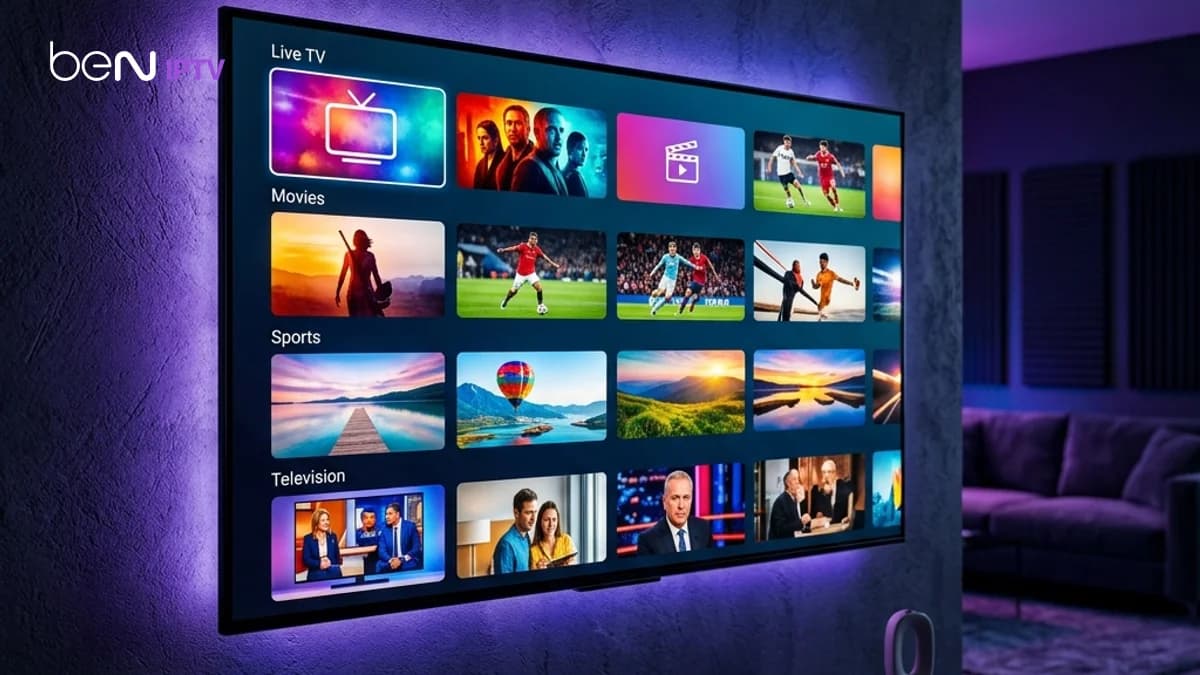
Bobo Player is a modern media player application designed for smart TVs and Android TV boxes. It features customizable interfaces, fast category loading, and supports EPG scheduling. This setup guide explains how to register your hardware MAC address, upload M3U URLs, and organize your channel list.
Table of Contents
1.1. Uploading Playlists via the Bobo Web Interface
When you open Bobo Player on your smart TV, a unique MAC address and Device Key will be displayed. Write down these values. Open a web browser on your phone or computer and visit the Bobo Player upload dashboard.
Input your MAC address and Device Key, paste your M3U playlist URL, and save the settings. Restart the TV app to sync your subscription database. To verify that your channels are active and load correctly under your current network setup, you can try our 24-hour free trial. You can register and test the player compatibility with no credit card required.
2.2. Setting Up Stream Security and VPN Routing
Because Bobo Player processes high-bandwidth HD feeds, your local internet service provider (ISP) can monitor your data packets. During peak evening hours, they may throttle video streaming data. Running a secure VPN encrypts your traffic to bypass these blocks.
If you choose the BEN IPTV annual plan, you'll receive a premium VPN included free for the duration of your subscription. This service installs directly on your router or TV device to ensure your streams remain completely unthrottled.
3.Comparison Matrix
| Upload Parameter | Recommended Setting | Purpose | Impact on Buffering |
|---|---|---|---|
| Save Playlist | Checked | Keeps playlist active on cloud server | Faster loading on app start |
| Auto-Update EPG | On | Auto-synchronizes program schedules | Displays live show information |
| Decoder Type | Hardware (HW+) | Implements GPU decoding acceleration | Reduces video stuttering |
4.Pros and Cons
Pros
- •Lightweight application with clean category directory layouts.
- •Simple web-based upload tool does not require TV remote typing.
- •Supports custom electronic programming guide (EPG) formats.
Cons
- •Requires a paid activation license after the initial trial period.
- •Playlist changes must be managed through an external website.
- •Older TV models can experience memory lag when loading heavy databases.
5.Common Challenges
A common issue is receiving a 'No Playlist' error message after uploading your M3U link on the portal. This is usually caused by typing mistakes in the MAC address or the server URL being blocked by security firewalls. Verifying spelling and using a VPN resolves this issue.
6.Step-by-Step Troubleshooting
- 1Verify that the MAC address you typed matches the one shown on your TV screen exactly.
- 2Clear the application cache or data inside your TV settings menu.
- 3Activate a VPN on your router to check if your internet provider is blocking server domains.
Frequently Asked Questions
Yes, Bobo Player parses and displays movies and TV series categories with cover art posters.
Yes, Bobo Player activation is a one-time charge paid directly to the app developers.
Conclusion
Bobo Player is a reliable choice for Android and Smart TV streaming. Verify our connection stability with Bobo Player by starting a free trial today.
Recommended Reading
Try BEN IPTV Before You Subscribe
Every device, operating system, and IPTV player behaves slightly differently. A free test gives you real access to check the things that actually matter before choosing a plan:
- ✓Verify device compatibility
- ✓Check stream quality
- ✓Test channel availability
- ✓Evaluate player performance
- ✓Confirm network stability